# Configure your integration
Integrations are defined through a file called `gitbook-manifest.yaml`. This file is automatically created through the CLI when creating a new integration.
\*required
### Name\*
The name of your integration. Must be unique across all GitBook integrations.
**Example:**
```yaml
name: unique-integration-name
```
### Title\*
The title of your integration.
**Example:**
```yaml
title: My Integration
```
### Description\*
A short description for your integration.
**Example:**
```yaml
description: A short, descriptive overview of my integration.
```
### Summary
A summary for your integration displayed on the installation page. Supports Markdown.
{% hint style="info" %}
The summary field is limited to 2048 characters.
{% endhint %}
**Example:**
```yaml
summary: |
# Overview
The GitBook Slack integration brings the power of GitBook to your Slack workspace. Your teams have instant access to your GitBook knowledge base, without leaving Slack.
# Configure
You can install the integration on a single space by clicking the integrations button in sub-navigation panel. If you prefer to install the Slack integration on multiple on all spaces you can enable this through organization settings. To configure the integration you will have to authorize the connection between Slack and GitBook. You can also select the default channel to post messages to.
```
### Organization\*
The [`id`](https://gitbook-v2-q67etdj25-gitbook.vercel.app/url/gitbook.com/docs/developers/integrations/concepts) or `subdomain` of the organization that owns this integration.
**Example:**
```yaml
organization:
```
### Visibility\*
The visibility for your integration.
| Visibility | Description |
|---|
private | Default for new integrations. Only members from the organization defined in the integration's manifest will be able to install the integration. |
unlisted | Members from any organization can install the integration. The integration will only be available to install via it's shared install link. |
public | Members from any organization can install the integration. You need this visibility to submit your integration to the marketplace." |
**Example:**
```yaml
visibility: private
```
### Scopes\*
The scopes your integration has permissions for.
**Example:**
scopes:
    # Spaces
    - space:content:read ## Read space content
    - space:content:write ### Write space content
    - space:metadata:read ## Read metadata related to a space
    - space:metadata:write ## Write metadata related to a space
    - space:git:sync ## Manage Git Sync within a space
    # Sites
    - site:metadata:read ## Read metadata related to a site
    - site:views:read ## Read analytics related to a site
    - site:script:inject ## Internal scope - see note below
    - site:script:cookies ## Internal scope - see note below
    - site:visitor:auth ## Enable workflows related to authenticated access
    - site:adaptive:read ## Read claims available from Adaptive Content
    - site:adaptive:write ## Write claims avaiable to Adaptive Content
    # OpenAPI
    - openapi:read ## Read information from a sites OpenAPI spec
    - openapi:write ## Write information to a sites OpenAPI spec
    # Conversations
    - conversations:ingest
{% hint style="danger" %}
You may see the scope `site:script:inject` throughout GitBook owned integrations — This scope is only available for internal GitBook use.
Building integrations that inject JavaScript into a site or space is not possible at this time.
{% endhint %}
### Script
The main script to execute for your integration. Should contain the call [`createIntegration()`](https://gitbook-v2-q67etdj25-gitbook.vercel.app/url/gitbook.com/docs/developers/development/runtime#createintegration).
**Example:**
```yaml
script: ./src/index.ts
```
### Blocks
Component block(s) referenced by `name` to render in the ( ⌘ + / ) menu. See [`createComponent()`](https://gitbook-v2-q67etdj25-gitbook.vercel.app/url/gitbook.com/docs/developers/development/runtime#createcomponent) to learn more.
**Example:**
```yaml
blocks:
- id: example-block
title: Exmple Block
description: An example block for a GitBook Integration
```
### Categories
A list of categories your integration falls into.
**Example:**
```yaml
categories:
- analytics
- collaboration
- content
- marketing
- authenticated-access
- other
```
### Icon
A locally referenced icon for your integration. Asset must be located alongside the code for your integration.
**Example:**
```yaml
icon: ./assets/icon.png
```
### Preview Images
A list of locally referenced assets to display on the installation page for your integration. (recommended: 1600px × 800px, aspect ratio: `2:1`)
**Example:**
```yaml
previewImages:
- ./assets/integration-preview-image.png
```
### External Links
A list of URLs to display on the installation page for your integration. Each link requires a `label` and a `url`.
**Example:**
```yaml
externalLinks:
- label: Documentation
url: https://example.com/docs
- label: Homepage
url: https://example.com/
```
### Configurations
The configurations key allows you to specify specific steps and configurations for your integration through it's `environment`.
You're able to set up default configurations under the `configurations.account` key, and site-specific configurations through the `configurations.site` key.
All configurations accept `properties`, which are named keys used to describe the different steps your user will go through as they install your integration. You can also name these properties in a `required` key to enforce certain configurations.
You can create as many properties as you would like, and can be of the following:
**`string`**
String configurations can be used to collect user input. You can use optional keys `enum` or `completion_url` to provide a list of items from a dropdown list instead than an input.
`enum` allows you to specify a list of items, while `completion_url` allows you to fetch options from an endpoint. See the [Slack configuration](https://github.com/GitbookIO/integrations/blob/main/integrations/slack/gitbook-manifest.yaml) to learn more.
```yaml
string_property:
type: string
title: String Property
description: A short description
default: A default Value
# Optional key to provide a list of options
enum:
- item 1
- item 2
- item 3
- item 4
# Optional key to fetch a list of entries from an endpoint.
completion_url: /completion-endpoint
```
**`number`**
```yaml
number_property:
type: number
title: Number Property
description: A short description
default: 1
```
**`boolean`**
```yaml
boolean_property:
type: boolean
title: Boolean Property
description: A short description
default: true
```
**`button`**
Button configurations can be used if you need to set up an OAuth connection with a provider in order to use your integration. See [`createOAuthHandler()`](https://gitbook-v2-q67etdj25-gitbook.vercel.app/url/gitbook.com/docs/developers/development/runtime#createoauthhandler) for more information.
```yaml
button_property:
type: button
title: Button Property
description: A short description
button_text: Authorize
callback_url: /callback-url
```
**Example Configuration:**
```yaml
configurations:
account:
properties:
oauth_credentials:
type: button
title: Connection
description: Authorization between my app and GitBook.
button_text: Authorize
callback_url: /oauth
default_channel:
type: string
title: Default Channel
description: Select a channel to post messages to, when none is configured for a specific space.
completion_url: /channels
required:
- oauth_credentials
- default_channel
site:
properties:
channel:
type: string
title: Channel
description: Select a channel to post messages related to this space.
completion_url: /channels
notify_content_update:
type: boolean
title: Notify Content Update
description: Post a notification message every time the content of the space is updated.
default: true
notify_visibility_update:
type: boolean
title: Notify Visibility Update
description: Post a notification message every time the visibility of the space is updated.
default: true
```
### Secrets
A list of secrets or environment variables that your integration might need in order to function. By default, environment variables are not loaded into GitBook's Manifest file.
We recommend using a package like [`dotenv-cli`](https://www.npmjs.com/package/dotenv-cli) to include environment variables in your integrations configuration through an `.env` file when using the `cli`.
See the [Linear integration](https://github.com/GitbookIO/integrations/blob/main/integrations/linear/package.json) for an example.
**Example:**
```yaml
secrets:
CLIENT_ID: ${{ env.CLIENT_ID }}
```
### Installation & Configuration flow
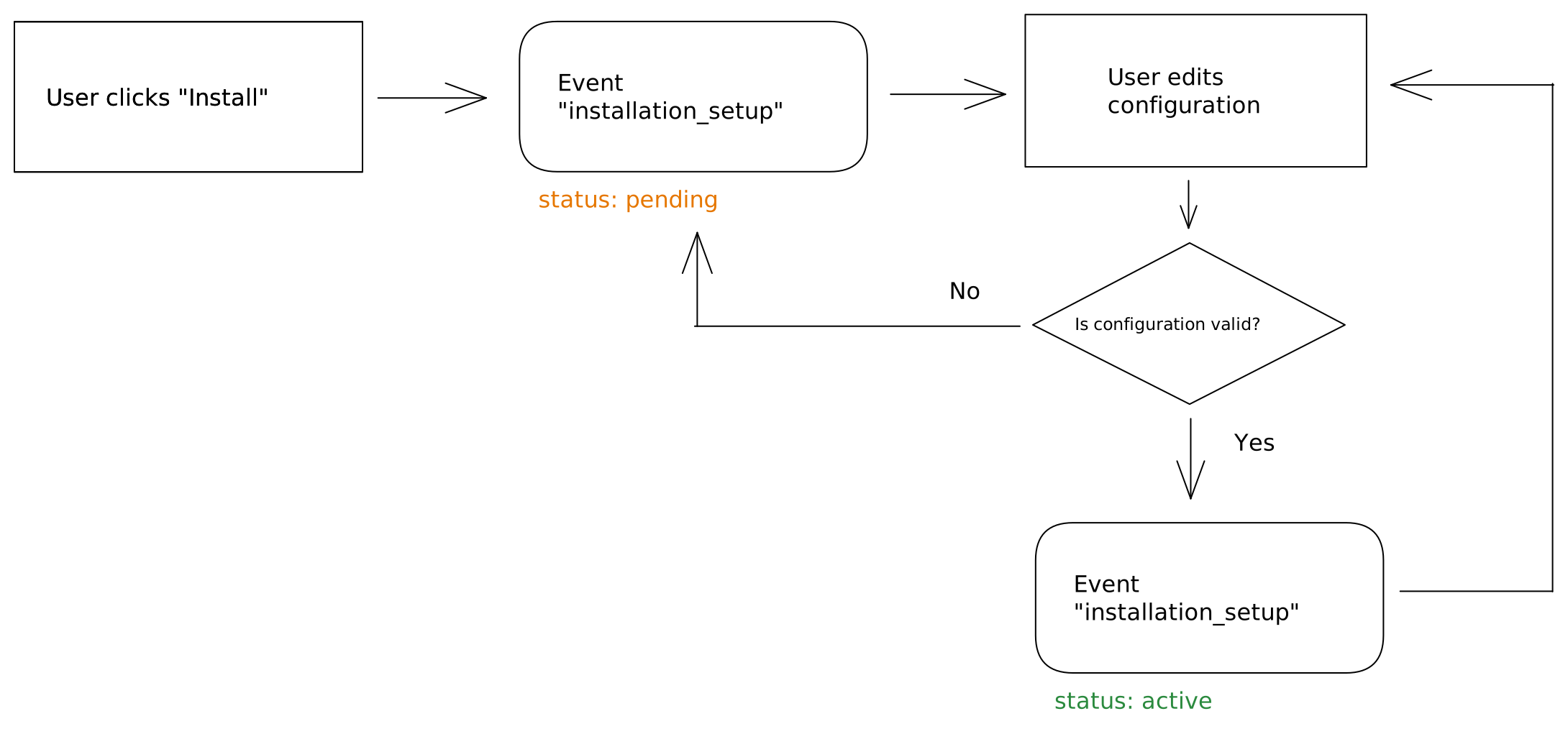
During the installation flow, an event `installation_setup` is triggered as soon as the integration is installed for the first time. You can identify the configuration as being incomplete by checking `environment.installation.status != 'active'`.
This event (`installation_setup`) is triggered every time the user edits one property of the configuration. The status will become `active` once the configuration pass the validation with the schema.